Add another channel to your workspace
Admins and Owners can add a channel to an Enterprise workspace, name it, and choose where its content comes from.
Adding another channel to your workspace requires an Enterprise plan. If you need workspace access, contact VideoNest.
Before you start
Log in to your VideoNest account with an Enterprise plan and an Admin or Owner role. Have a unique channel name ready, along with access to the content source you want to connect.
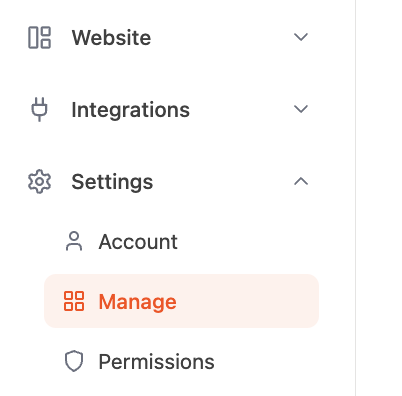
Quick path: Settings → Manage → Channels → Add Channel.
1. Open Manage
- In the left-hand sidebar, expand Settings and click Manage.
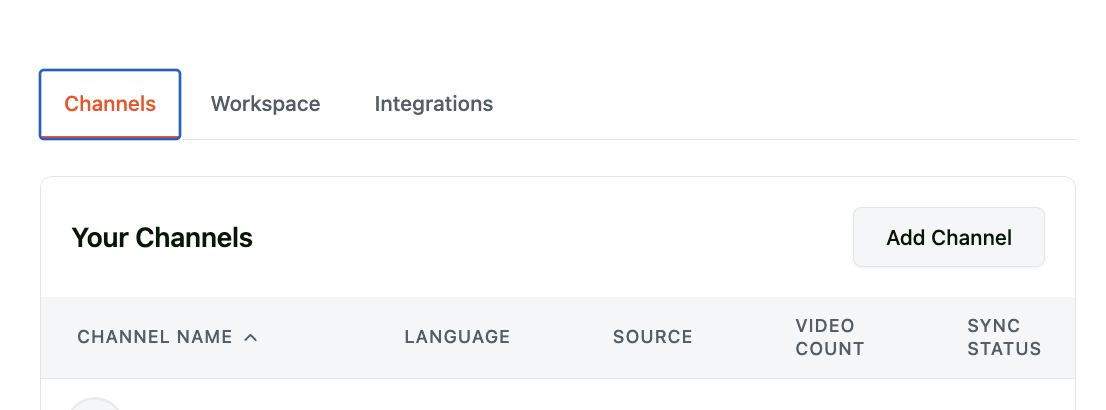
- Open the Channels tab. The Your Channels section lists your workspace's channels.
2. Add another channel
On an Enterprise plan, click Add Channel in the Your Channels section to start the channel setup questionnaire.
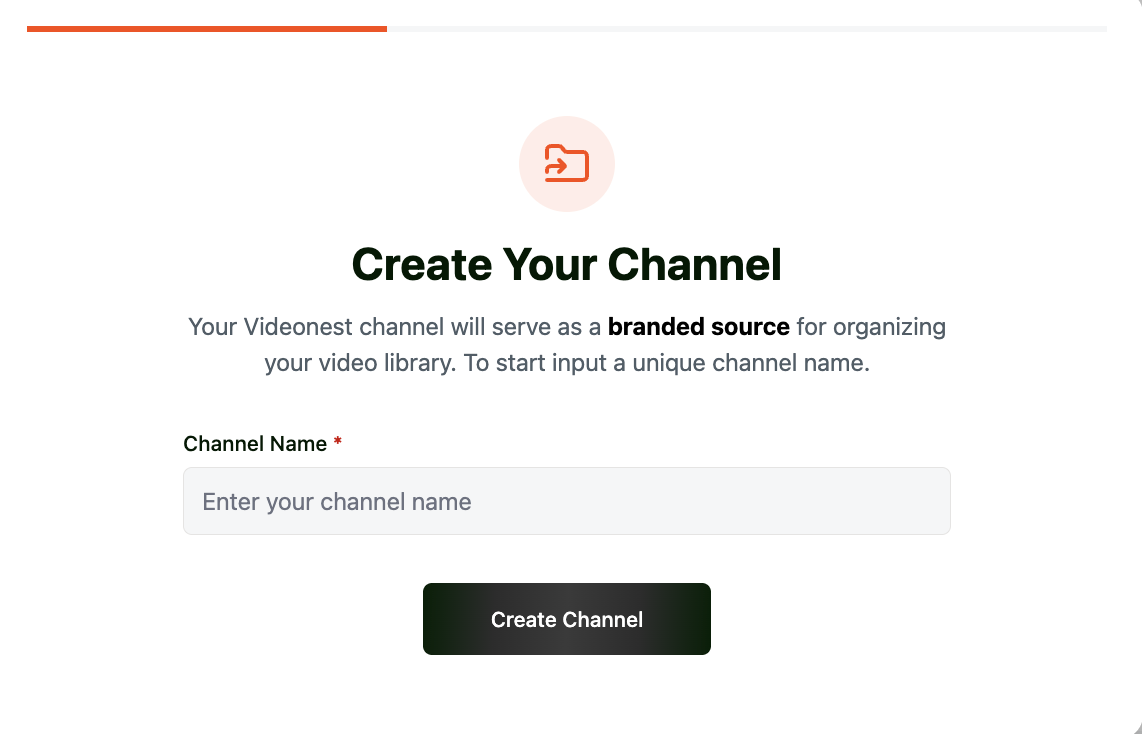
- On Create Your Channel, enter a unique name in Channel Name.
- Click Create Channel.
- The next screen is Choose Your Content Source.
3. Choose your content source
Select the source for this channel and follow its connection prompts:
- YouTube: Click Authenticate and connect the Google account attached to your YouTube channel.
- Dropbox: Click Connect Dropbox to connect the folder containing your videos.
- TikTok: Click Sync Channel and enter your TikTok username.
- Instagram: Click Sync Channel and enter your Instagram username.
- MRSS Feed: Click Connect and follow the prompts for your feed URL and field mapping.
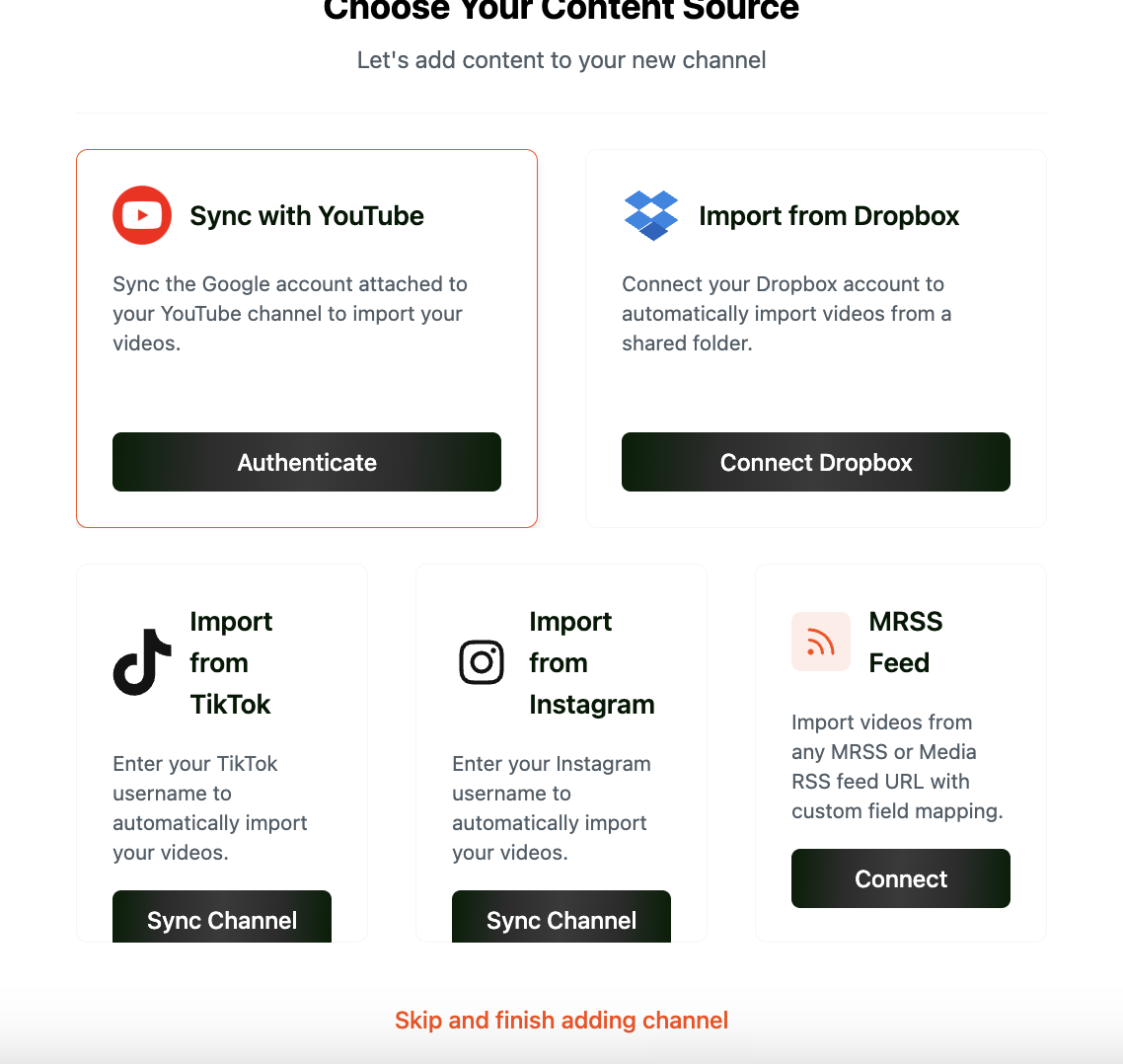
Not ready to connect a source? Click Skip and finish adding channel. You can add content later using the upload guide or content source guide.
When setup is complete, return to Settings → Manage → Channels and find the new channel in Your Channels. The list includes its source, video count, and sync status.
What is a workspace?
A workspace groups your channels under one VideoNest account. Use it to manage separate brands or content libraries without creating a separate login for each channel.
Accounts, channels, and workspaces
- Your account is the identity you use to log in.
- A channel organizes a video library and its content source.
- Your workspace brings those channels and your team together.
Team access
Each member has a role and a channel access setting. The role determines what they can do, and the channel setting determines where those permissions apply. All channels includes every current and future channel. Selected channels includes only the channels an Admin or Owner grants.
Adding a channel does not automatically grant access to it for members set to Selected channels. An Admin or Owner can update their access from the Members list. Members set to All channels get access to the new channel automatically.
To invite a teammate or compare roles, follow Add a team member and review the role descriptions.
If the controls are missing
Confirm that you are logged in to the correct Enterprise account and have opened Settings → Manage. Only Admins and Owners can add channels. If your role does not include this access, ask your workspace Admin or Owner. If an Admin or Owner still cannot see the control, contact VideoNest support.